Employees: Edit employee
Admin edit screen for one person: Profile, Leave & Time Off, Mileage (if on), and Reports & Settings tabs with Save Changes.
/admin/employees/{id}/edit
Roles
Company admin · Super admin
Edit Employee at /admin/employees/{id}/edit is where administrators update a single person: identity and org fields, leave allocation and schedules, mileage flags when the module is on, and reporting-related options — organized into tabs.
Open it from the admin roster by choosing a user’s edit action. You can also bookmark a direct URL:
/admin/employees/{id}/edit
(replace {id} with the person’s numeric id).
Overview
The page header shows the employee’s name, email, optional employee number, and avatar (or initials). Back to Employees returns to the roster. A sticky Save Changes action submits the main form; the UI may warn you about unsaved edits before you leave.
Tabs at a glance
| Tab | Typical contents |
|---|---|
| Profile | Name, email, phone, job title, manager, department, timezone, country, address, emergency contacts, and other profile fields your company marks as required. |
| Leave & Time Off | Leave policy year context, balances or allowances, scheduling hooks, and related time-off configuration for this employee. |
| Mileage | Shown only when mileage is enabled for the tenant — per-employee mileage preferences and tracking defaults. |
| Reports & Settings | Reporting facets, account status, and other administrative toggles grouped for HR/payroll workflows. |
Exact fields vary by your company configuration and enabled modules.
Saving
Use Save Changes after edits. Watch for validation messages on individual fields and the success or error banner at the top. Large forms are easier to work through tab-by-tab — you can still save from any tab because the underlying form is shared.
Who can use it
Company administrators edit employees in their company. Super admins can open employees in the companies they administer. This route is not available to regular employees.
Product screenshots
Below are captures for each tab (demo employee; Mileage appears only when the module is on).
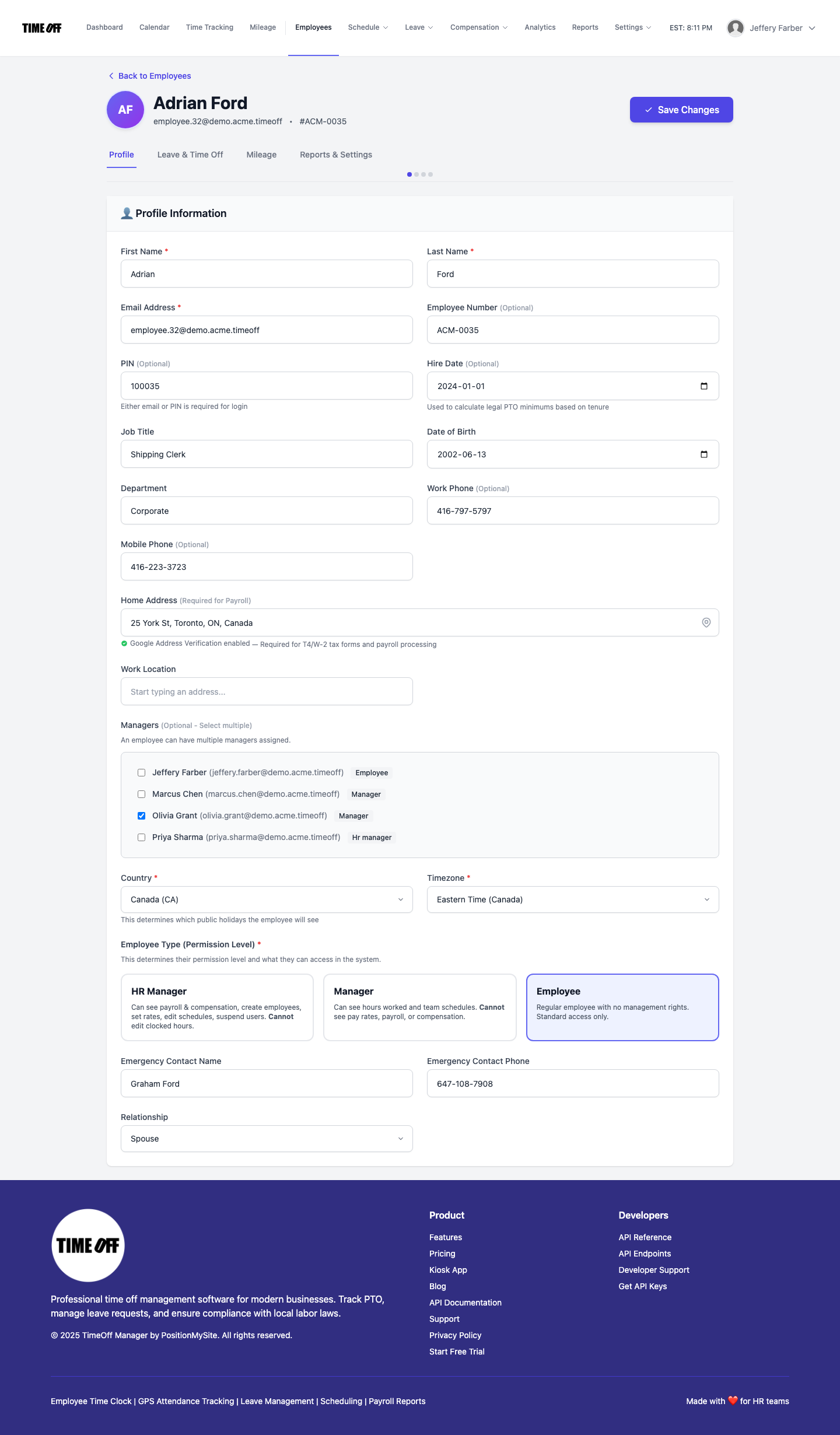
Edit Employee — Profile tab.
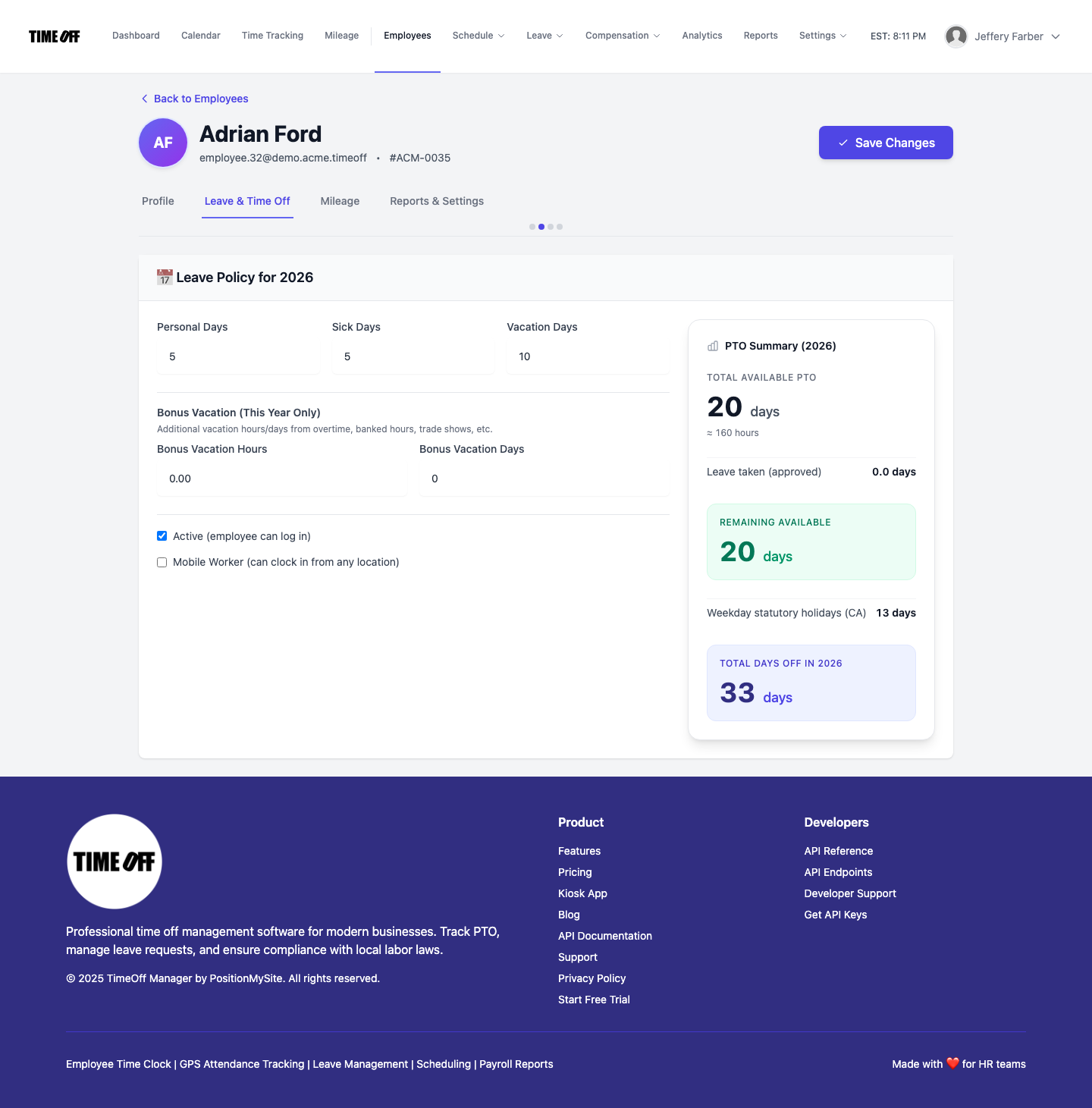
Edit Employee — Leave & Time Off tab.
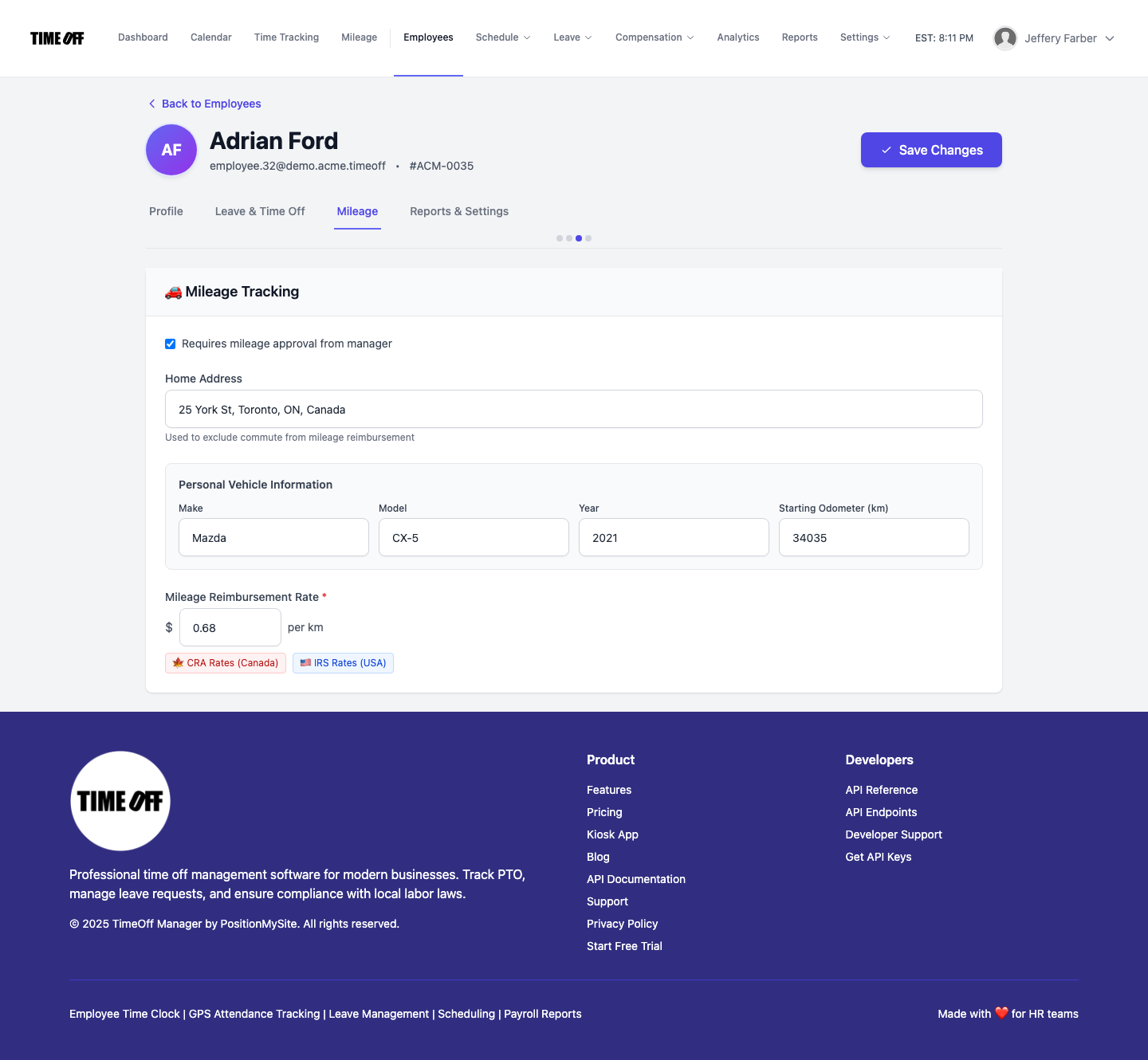
Edit Employee — Mileage tab (when mileage is enabled).
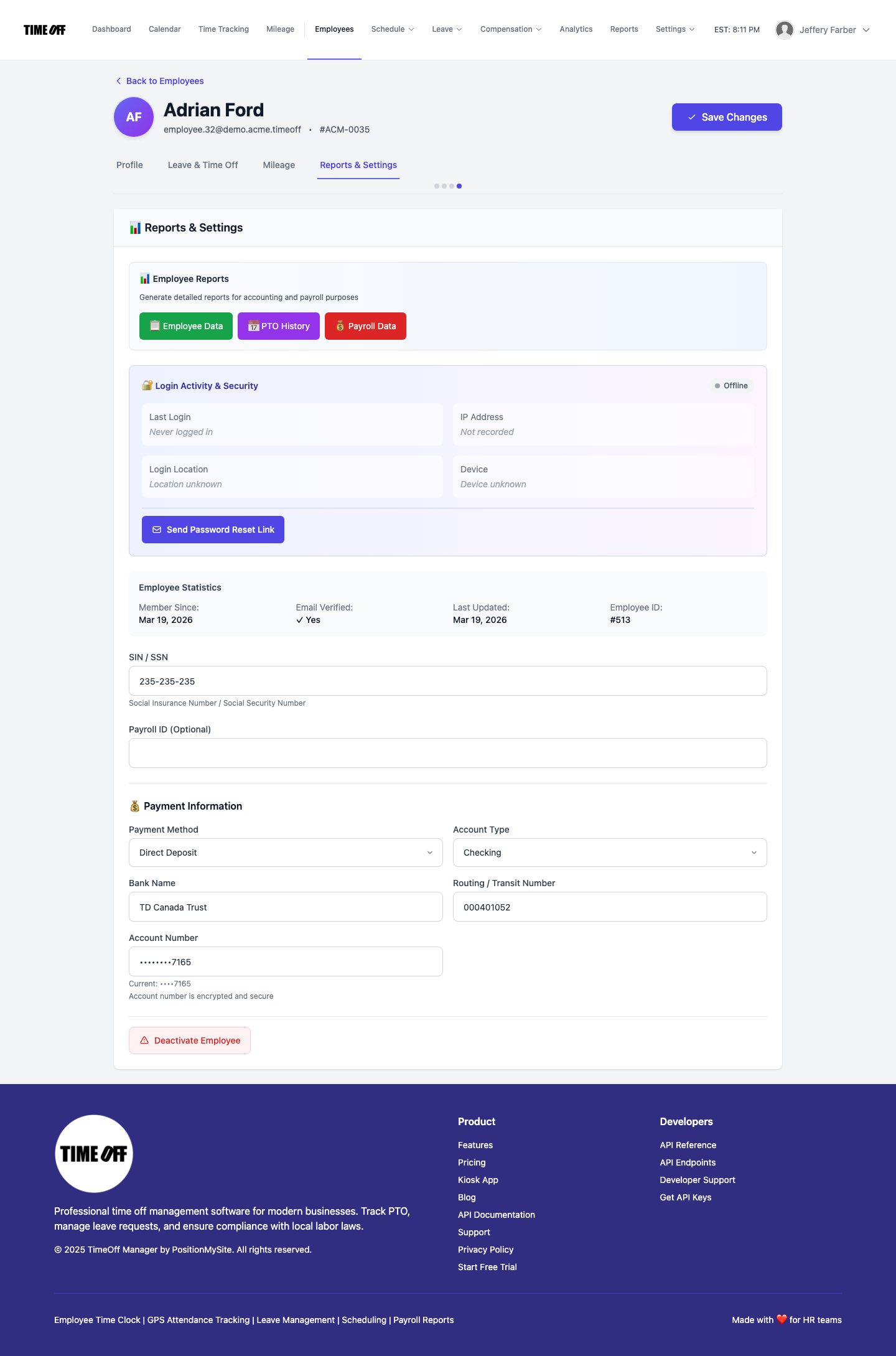
Edit Employee — Reports & Settings tab.