Shift templates
Reusable schedule patterns at /admin/templates: list, stats, filters, import/export; create new templates at /admin/templates/create before bulk or per-employee assignment.
/admin/templates
Roles
Company admin · Super admin
Shift templates are reusable weekly patterns—days, shift times, categories, and (when configured) default work locations—that you define once and apply across schedule management and bulk assignment.
Overview
The main library lives at /admin/templates. The create flow is at /admin/templates/create. Templates speed up onboarding and keep schedules consistent; they complement (but are separate from) editing a single person at Schedule: Edit one employee.
Template library
On the index page you typically have:
- Header — Shift Templates and the company you’re managing.
- Create Template — opens the create form.
- Super admin company picker — when you manage multiple companies, a
company_idselector may appear (URLs can include?company_id=…). - Stats & quick actions — counts and shortcuts (defaults, import/export, etc., depending on your build).
- List or grid — existing templates with usage, category filters, and search.
Create a template
/admin/templates/create walks through Basic Information (name, description, category), weekly shift definitions, optional work location binding, and save. After saving, the template appears in the library and can be chosen from bulk schedule assignment or when editing an individual schedule where the UI offers templates.
Company context
Templates are stored per company. Company administrators always work in their own company. Super admins may pass through
company_id on the query string (e.g.
/admin/templates?company_id=27) to switch context when the selector is shown.
Using templates
- Bulk: Bulk Schedule Assignment — select people + template.
- Per person: open the employee schedule editor when your build exposes “apply template” there.
Product screenshots
Index and create form (demo tenant).
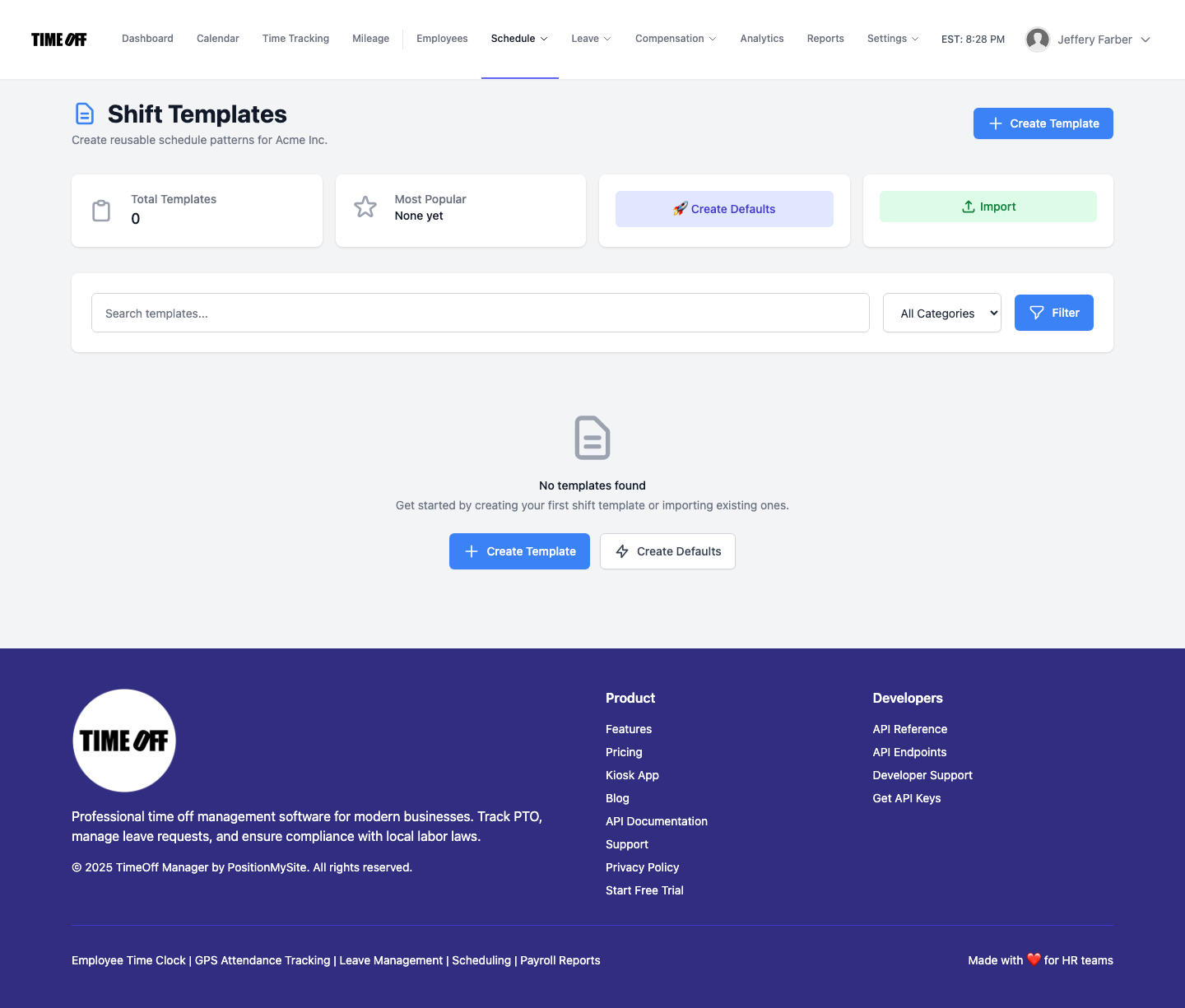
Shift templates — /admin/templates
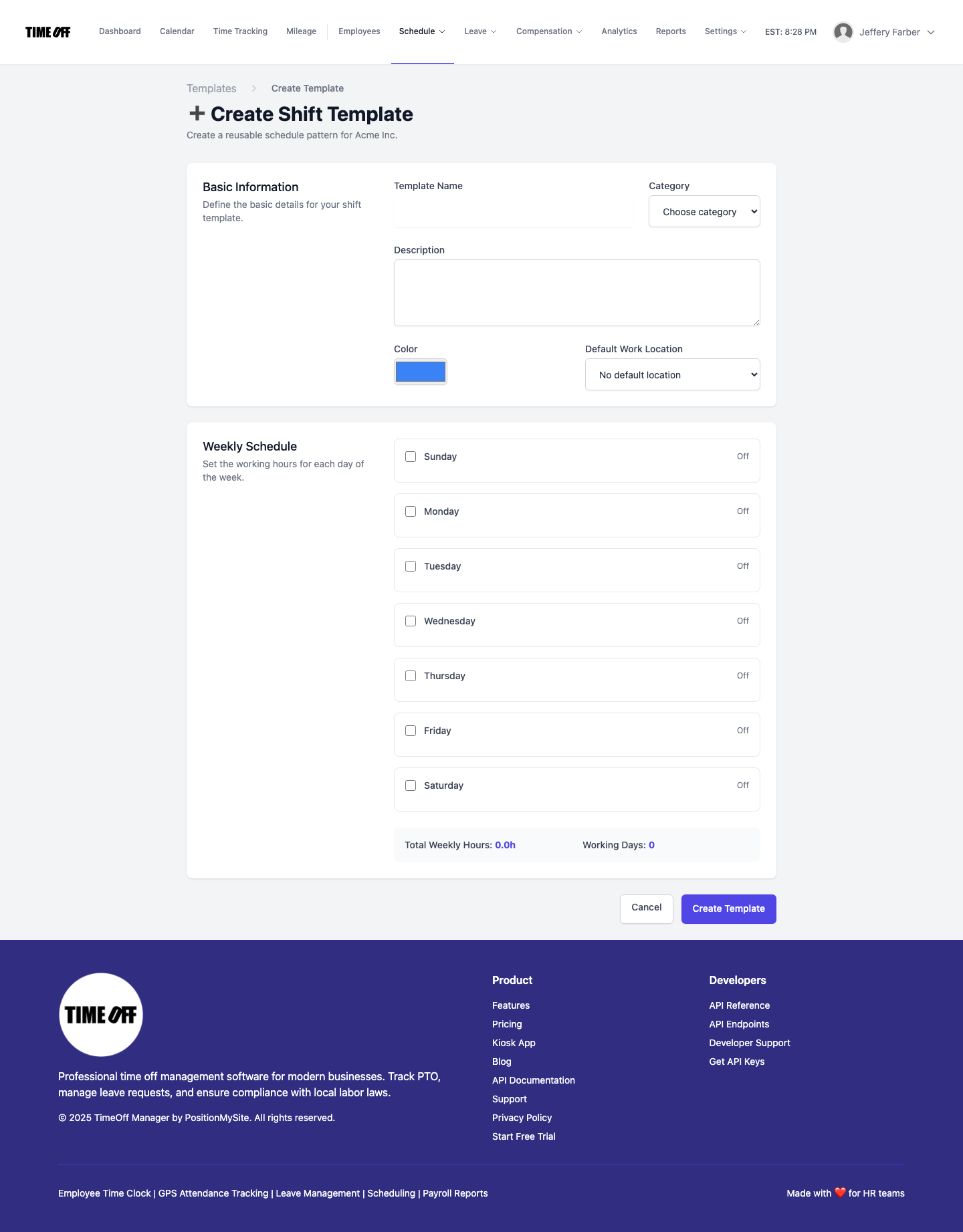
Create Shift Template — /admin/templates/create