Dashboard overview
Your home page after login: time clock (if enabled), balances, shortcuts, and activity — the anchor for day-to-day use.
/dashboard
Roles
All roles (content varies by permissions)
The dashboard is the first screen most people see after Sign in. It summarizes “right now”: time clock status (if your company uses it), leave balances, and shortcuts into Calendar, requests, and timesheets.
Purpose
Use the dashboard to confirm you’re in the right account, see today’s date in the company timezone, and jump to the task you need without hunting the top navigation. What you see depends on your role and which modules your company enabled (time tracking, mileage, payroll, etc.).
What’s on the page
- Welcome header — Personalized greeting and the current date (company timezone).
- Time clock card (if enabled) — Clock in/out or link to PIN kiosk; status badge shows whether you’re active.
- Leave / PTO snapshot — Balances and quick context (wording varies by setup).
- Activity or tabs — Recent actions, pending items, or summaries your build exposes on the home page.
Trial companies may also see a trial banner with days remaining and billing links for admins.
Where to go next
| Goal | Top nav (typical) |
|---|---|
| Request time off | My Requests / Leave |
| See team coverage | Calendar |
| Punch or review time | Time Tracking |
| Log a trip | Mileage |
| Company settings | Settings (admin) |
Product screenshot
Automated capture: full page after login as demo company admin (modules visible match your tenant).
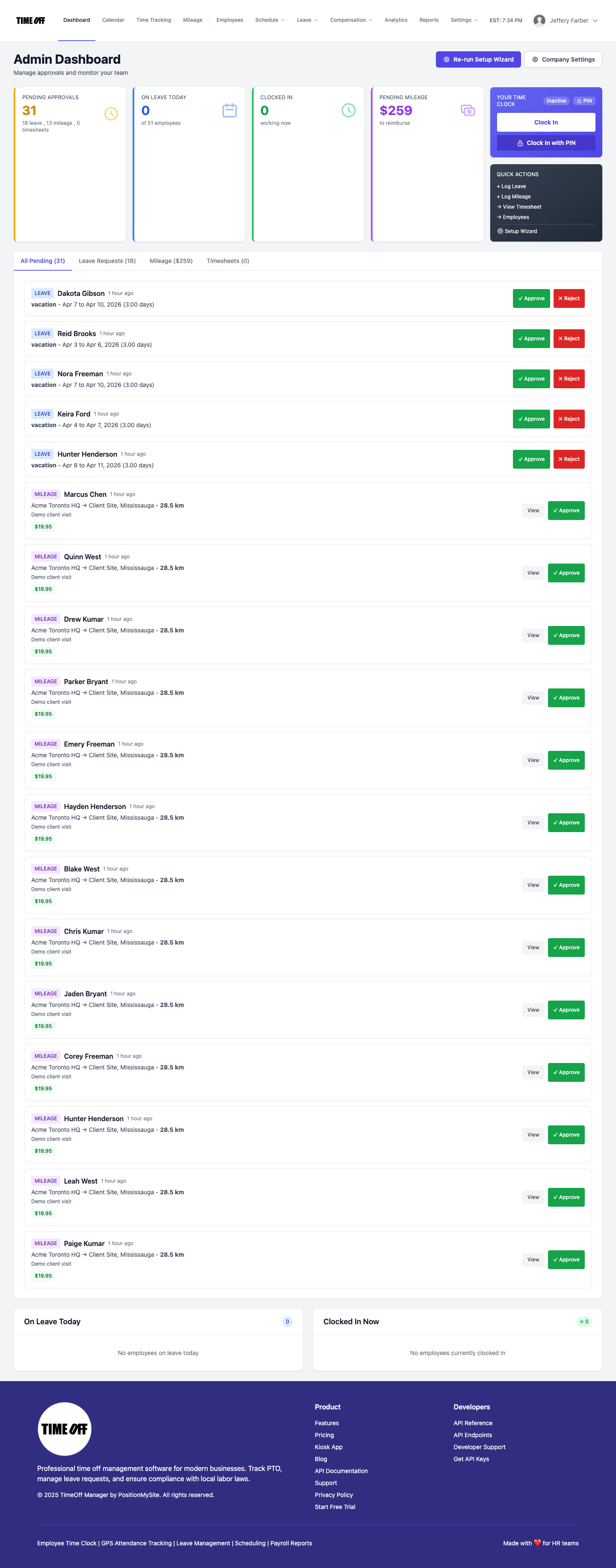
Dashboard — signed-in home (company admin, Acme demo).