Setup wizard
Guided 4-step onboarding for admins: turn on modules (time tracking, mileage, etc.), set how PTO is measured, optional GPS default, then finish setup.
/setup-wizard
Roles
Company admin · Super admin
The setup wizard at /setup-wizard is the first-run configuration for your company in TimeOff Manager. It turns the right product areas on, sets how time off is counted, and (if you use clock-in/out) a default GPS policy—so day-to-day screens match how you actually work.
What it is
A short, guided flow (shown as Step 1 of 4 through completion) that writes settings onto your company record. It’s not a tutorial page—it changes real toggles: modules like time tracking and mileage, time-off units, hours-per-workday, optional payroll/compensation features, and whether new employees default to GPS-verified clock-ins.
Who it’s for
New administrators finishing trial or paid signup, or anyone consolidating options after creating the company. Regular employees and managers do not access this screen.
The four steps
- What do you need to track? — Time off / PTO is always on. You can enable clock in & out, mileage, overtime, custom leave types (then manage at /admin/leave-types), and compensation & payroll if your plan uses them — then maintain pay records at /admin/compensation, run payroll at /admin/payroll, and use the job offer wizard (/offers/create) for new hires.
- How do you measure time off? — Choose days only, hours only, or both (recommended). For days or both, set hours per workday (used when converting between days and hours).
- GPS for clock-ins? — Shown only if you enabled time tracking: default to requiring location verification or trusting employees from anywhere.
- Finish — Review and complete; the app marks setup as done and returns you to the dashboard (or your configured next step).
When you see it
If setup isn’t finished yet, visiting the main dashboard as an admin can redirect you into the wizard until you complete it. After that, you can still reopen it anytime from Company settings or admin shortcuts (e.g. Re-run Setup Wizard) to adjust the same kinds of options.
After completion
Enabled modules appear in the navigation; leave, calendar, and approvals behave according to the units you chose. You can refine details later in Company settings and feature-specific admin pages— the wizard is the fast path to a correct baseline.
Product screenshot
Automated capture: step 1 — What do you need to track? (demo company admin).
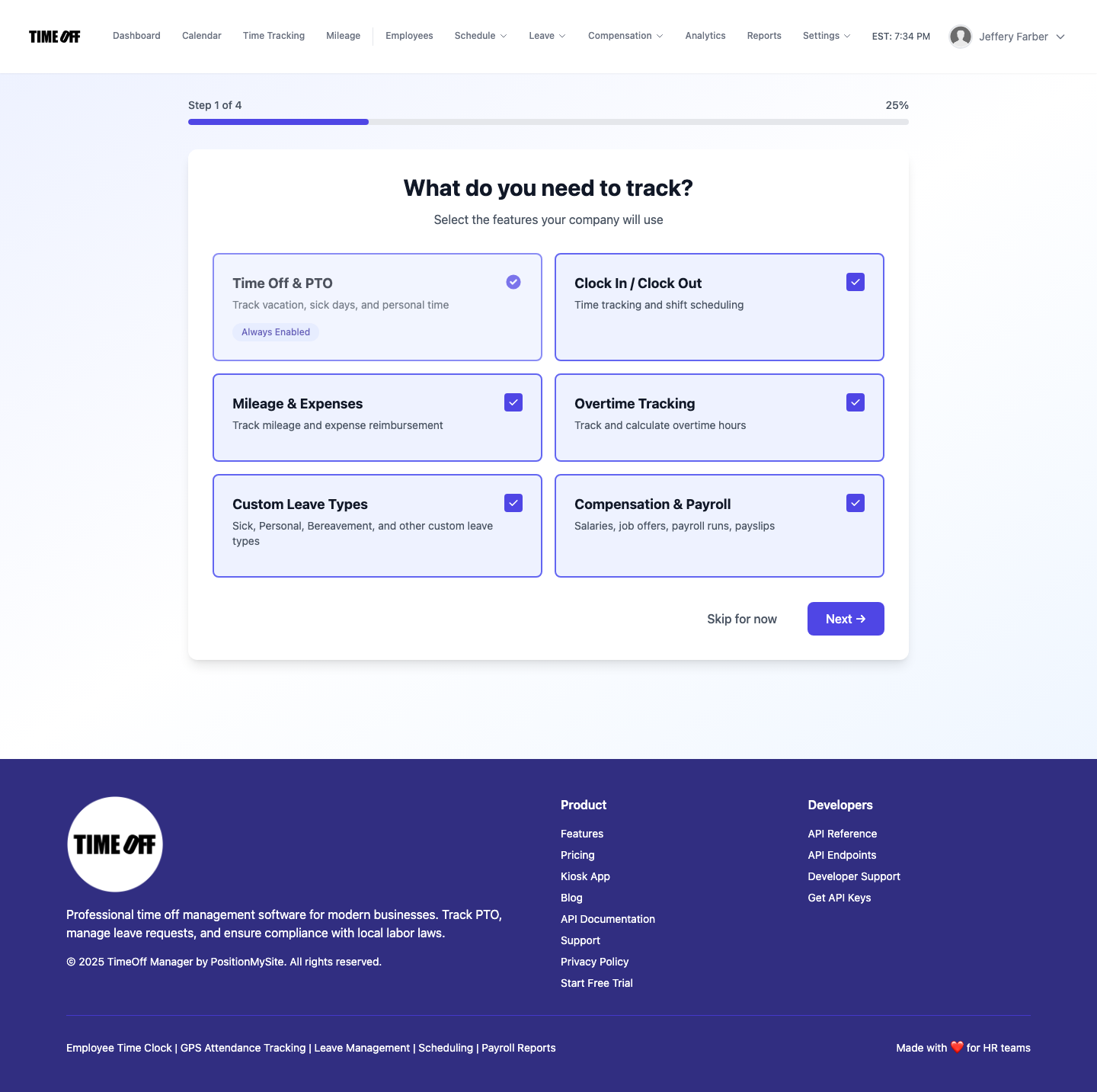
Setup wizard — step 1 (Acme demo).