Compensation: View, edit & history
Per-record detail /admin/compensation/{id} (rates, status, notes, Edit/View History/Employee); edit form /admin/compensation/{id}/edit; timeline /admin/compensation/employee/{userId}/history for effective-dated rows.
/admin/compensation/{id}
Roles
Company admin · Super admin · HR manager
Besides the compensation hub, each employee compensation row has three focused URLs: a read-only style detail page, an edit form, and a history list for that person’s effective-dated records (past and current). IDs in URLs are numeric and come from your database (examples like 480 or user 529 on production will not match local or other tenants).
Overview
Open any card from /admin/compensation with View to see the detail screen. Use Edit from the list or detail to change fields your policy allows. History aggregates every compensation version for that user (employee), not just the single record you opened—useful for audits and “who changed what” context when Created By is shown.
Detail: /admin/compensation/{id}
- Breadcrumb — Compensation → employee name.
- Header — Avatar, name, email, title, and Compensation Active / Inactive badge.
- Body — Current rate/salary cards, type, pay frequency, effective date, overtime and related fields your build surfaces, optional Notes.
- Actions — Edit Compensation, View History, View Employee Profile (opens the standard employee editor).
Edit: /admin/compensation/{id}/edit
- Breadcrumb — Compensation → View → Edit.
- Title — Edit Employee Compensation with the employee named in the subtitle.
- Form — Compensation type (hourly, salary, contractor, contract where enabled), rates or annual salary, currency, pay frequency, overtime eligibility, effective date, optional notes—then Save / update per your UI.
History: /admin/compensation/employee/{userId}/history
- Title — Compensation History with employee name and email.
- Table — Effective date, type, rate/salary, end date, status, overtime, created by, row actions (e.g. open a past record).
- Shortcuts — Back to List, View Employee.
The {userId} segment is the employee’s user id (same person as on the compensation record’s user_id), not always the same number as the compensation row id.
Access
Same rules as the hub: compensation & payroll enabled and an admin-tier account with access to that company’s data. Detail and edit require a compensation {id} that belongs to your company; history requires an employee {userId} in your company or you’ll get a forbidden error.
Product screenshots
Automated captures use DOCS_CAPTURE_COMPENSATION_RECORD_ID and DOCS_CAPTURE_COMPENSATION_HISTORY_USER_ID — see docs/DOC_SCREENSHOT_AUTOMATION.md.
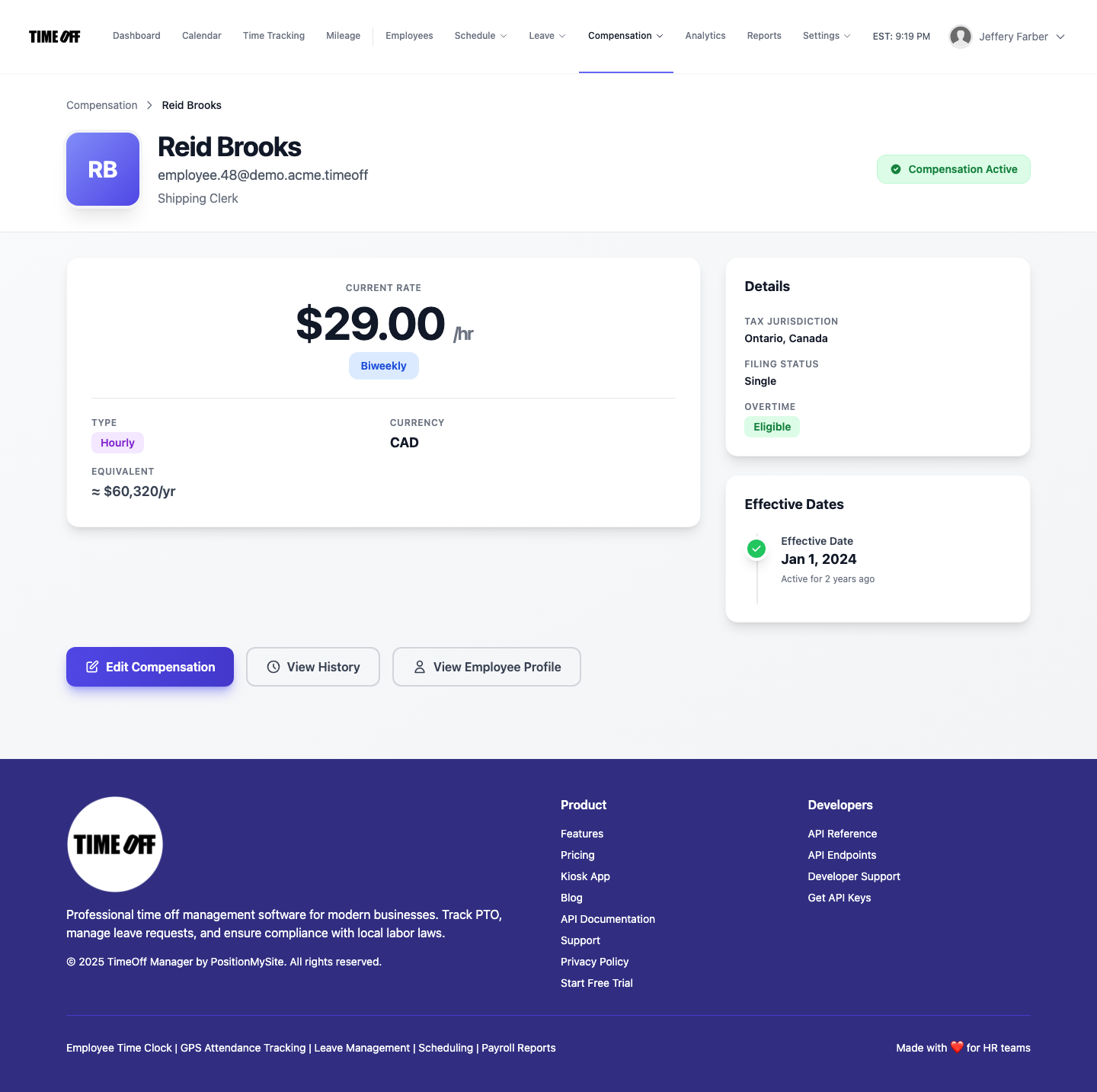
Compensation detail — /admin/compensation/{id}
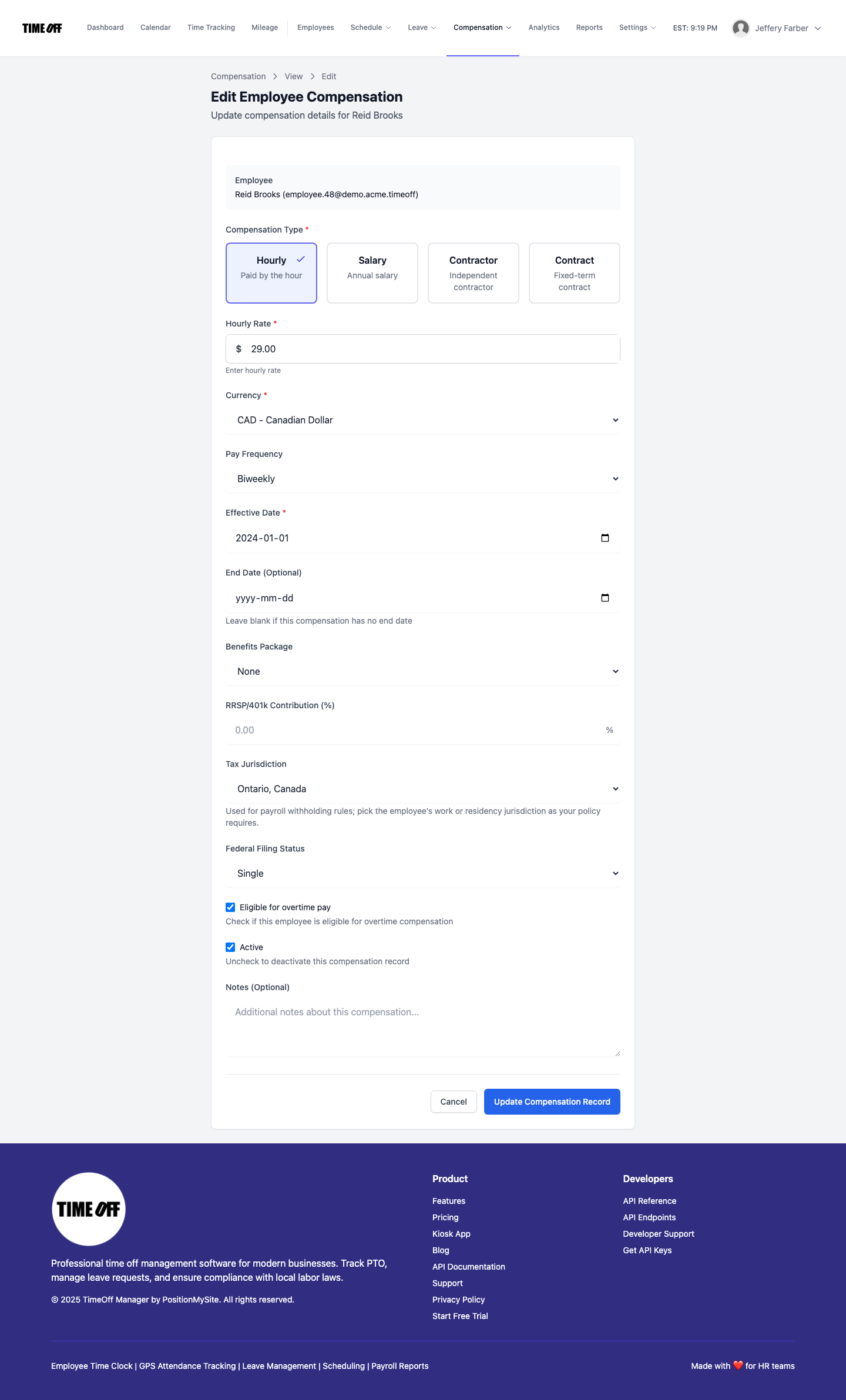
Compensation edit — /admin/compensation/{id}/edit
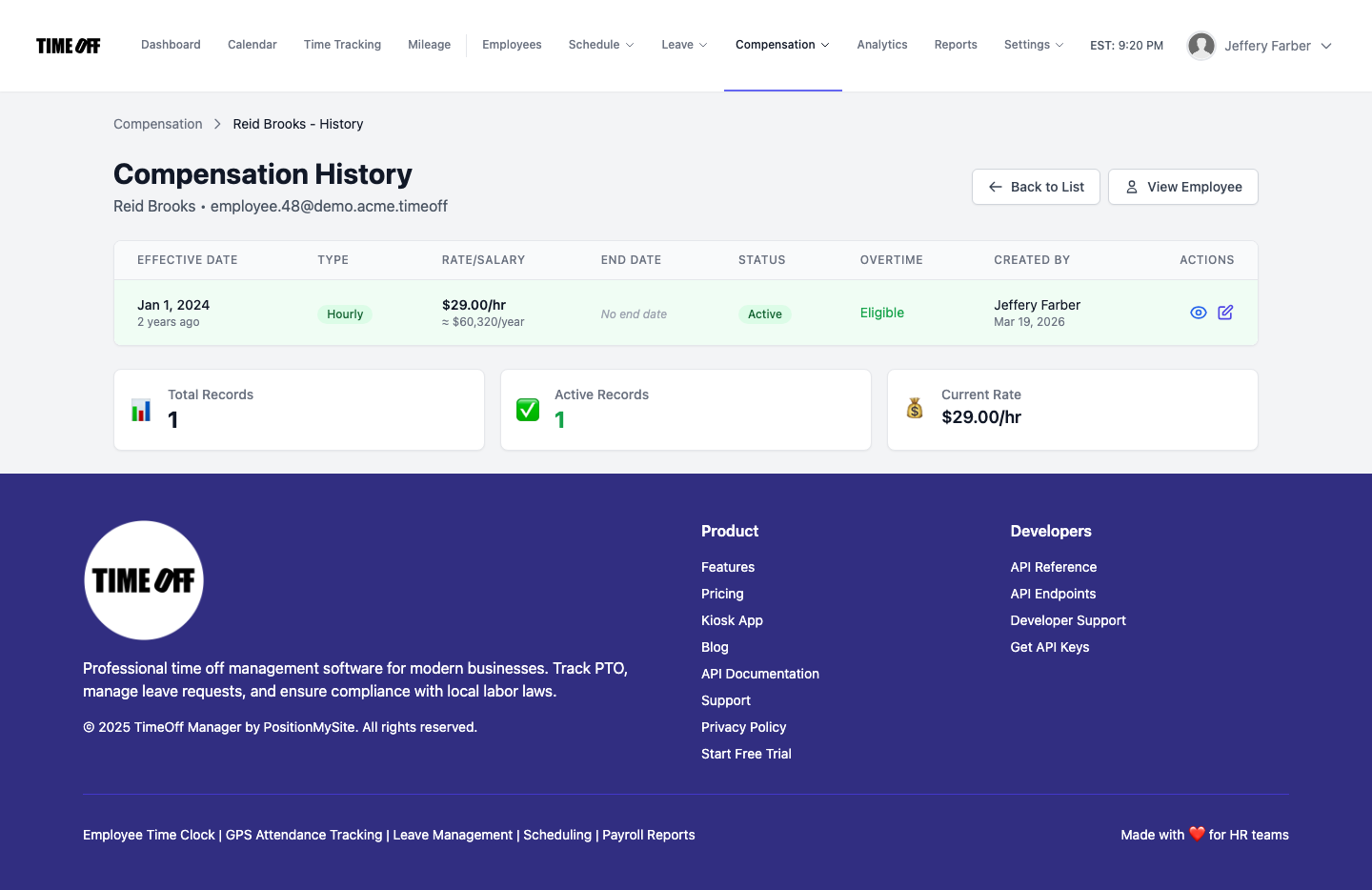
Compensation history — /admin/compensation/employee/{userId}/history