Job offer wizard
Five-step flow at /offers/create: candidate, compensation package, benefits, bonuses, review—save draft or send offer email when compensation & payroll is enabled (breadcrumb from Compensation).
/offers/create
Roles
Company admin · Super admin · HR manager
The Job Offer Wizard at /offers/create walks admins and HR through onboarding a new hire with a formal offer: candidate details, compensation, benefits package, bonuses/perks, then a review step. You can save a draft or send the offer so the candidate can accept via their email link (your tenant’s workflow applies).
Overview
The UI breadcrumbs back to Compensation (/admin/compensation), where you’ll also find Hire Employee opening this same path. That keeps pay-related hiring tasks in one area of the product.
Enabling access
The company needs Compensation & Payroll enabled (see Setup wizard). With the feature off, routes under /offers are blocked the same way as other compensation tools. You must be signed in as an account that passes your app’s admin-tier checks (company admin, HR manager, super admin, etc.).
The five steps
- Candidate — Name, email, position, department, optional start date.
- Compensation — Pay type and amounts your build collects (e.g. hourly or salary), structured as compensation data for the offer.
- Benefits — Optional benefits package from your company’s active packages.
- Bonuses — Signing bonus, performance language, equity/other perks notes as your form supports.
- Review — Offer letter content and final action: save draft or send.
Progress is shown across the top of the wizard; use Back / Next (or equivalent) inside the flow to move between steps.
After you send
Candidates typically receive a link to accept or decline. Internal visibility of offer status may appear under admin offer detail URLs (e.g. /admin/offers/{id}) depending on your build. Once someone is active as an employee, ongoing pay lives in Compensation records and the main employee roster.
Related
Compensation: Employee records · Payroll: Runs & history · Company settings (payroll governance) · Employees: Admin roster (alternate path: invite/import without a formal offer).
Product screenshots
Automated capture: full page for each wizard step after login (compensation & payroll enabled). Filenames: job-offer-wizard-01 … 05 — see docs/DOC_SCREENSHOT_AUTOMATION.md.
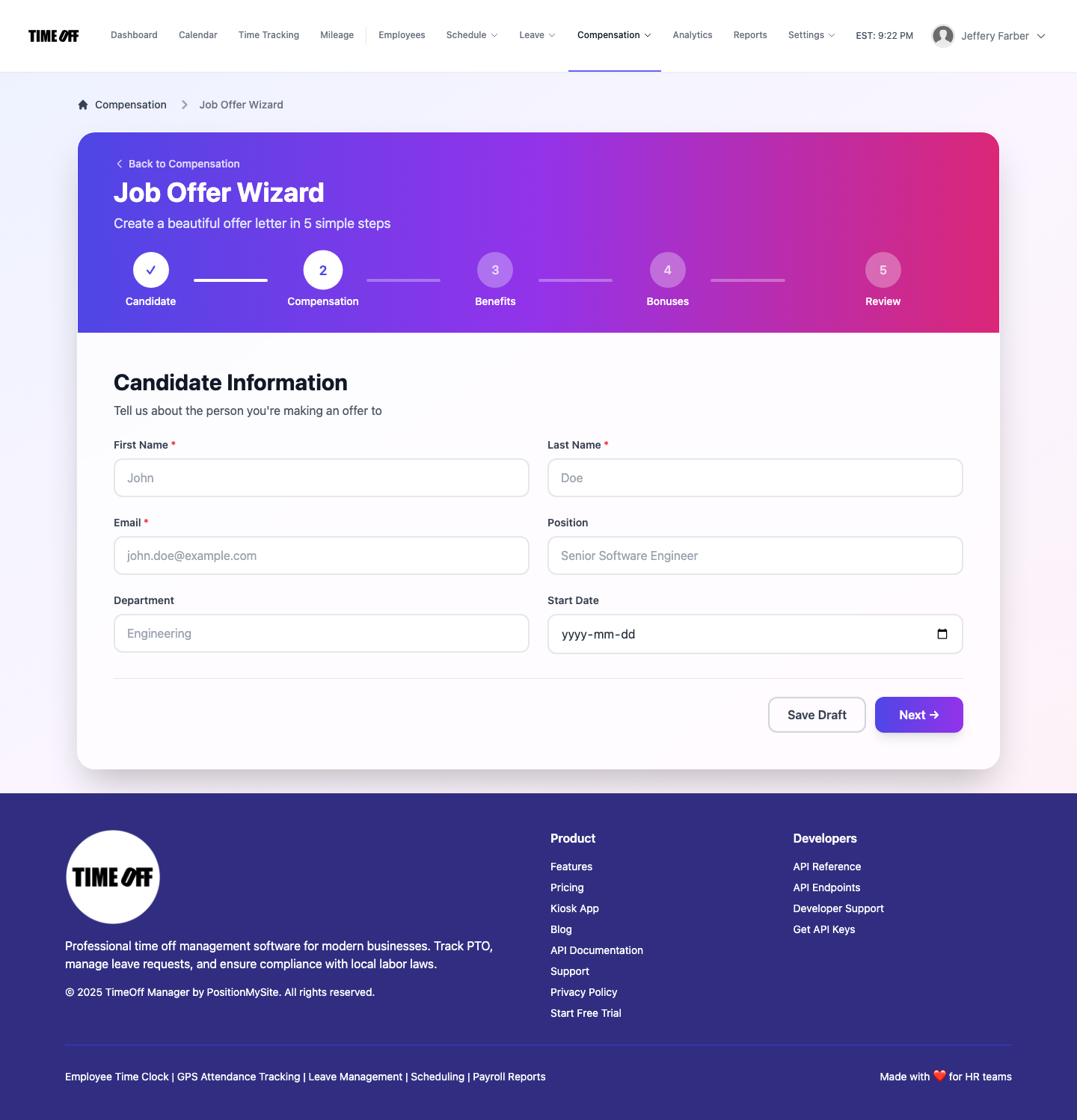
Step 1 — Candidate · /offers/create
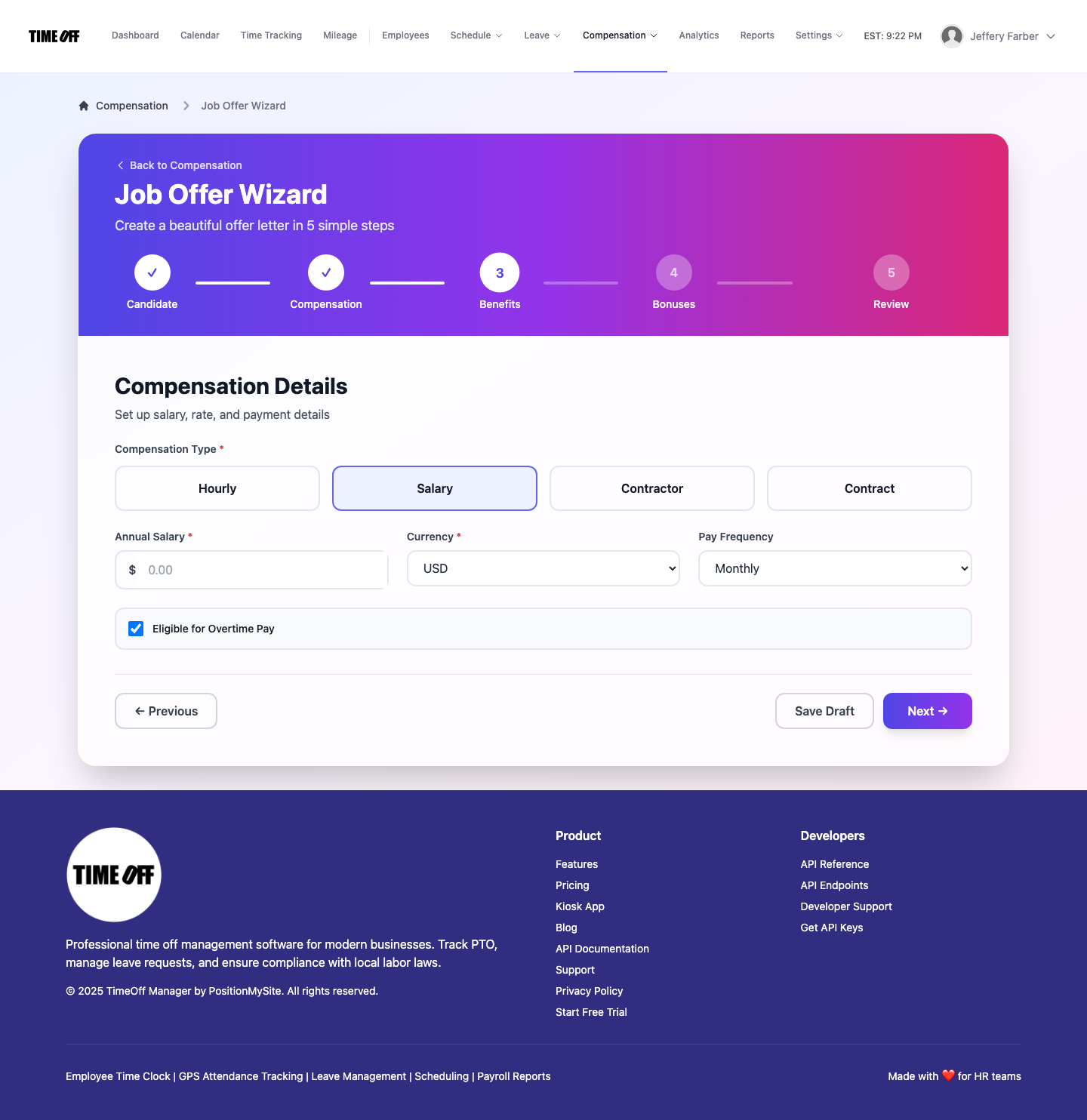
Step 2 — Compensation details
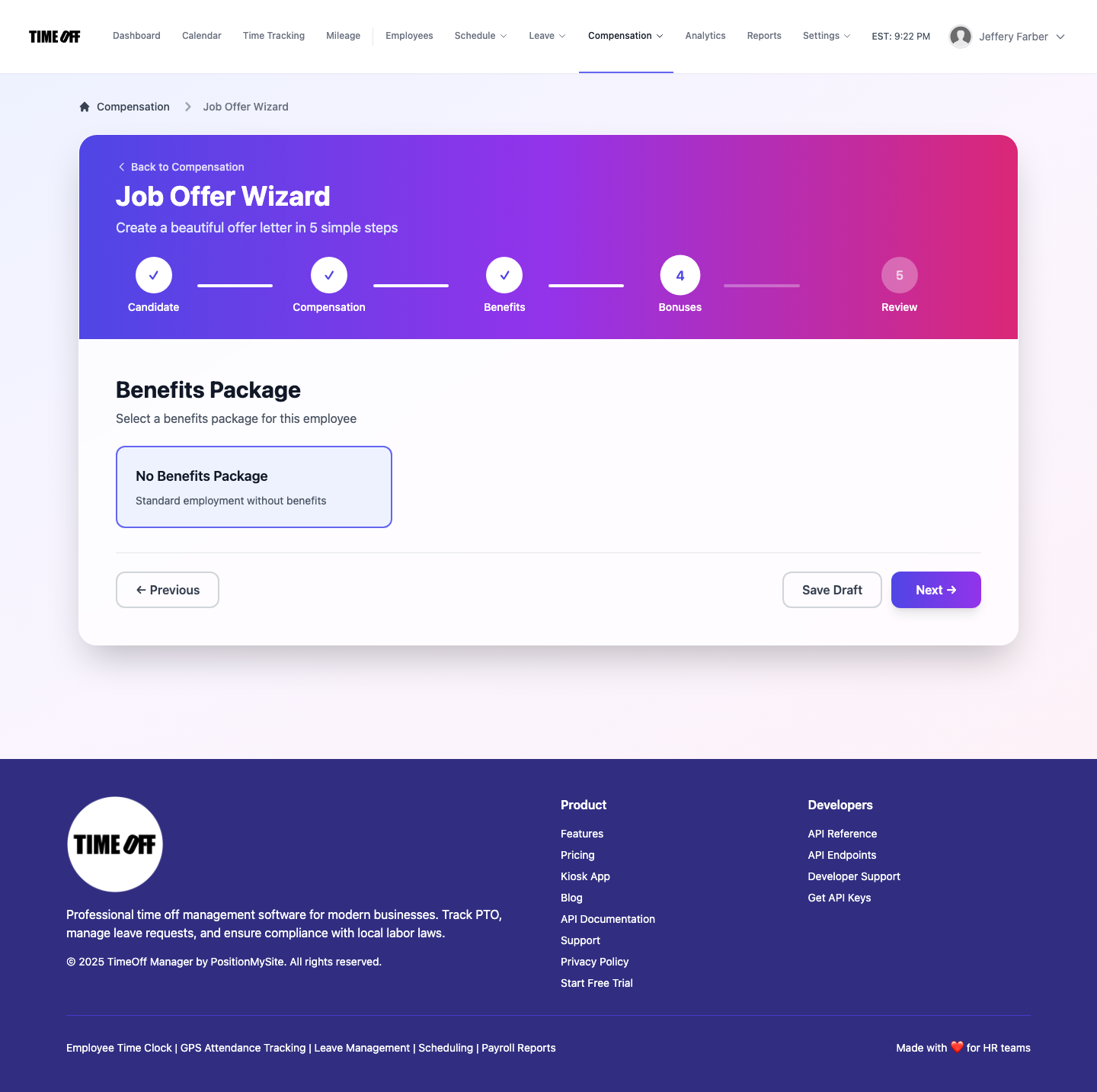
Step 3 — Benefits package
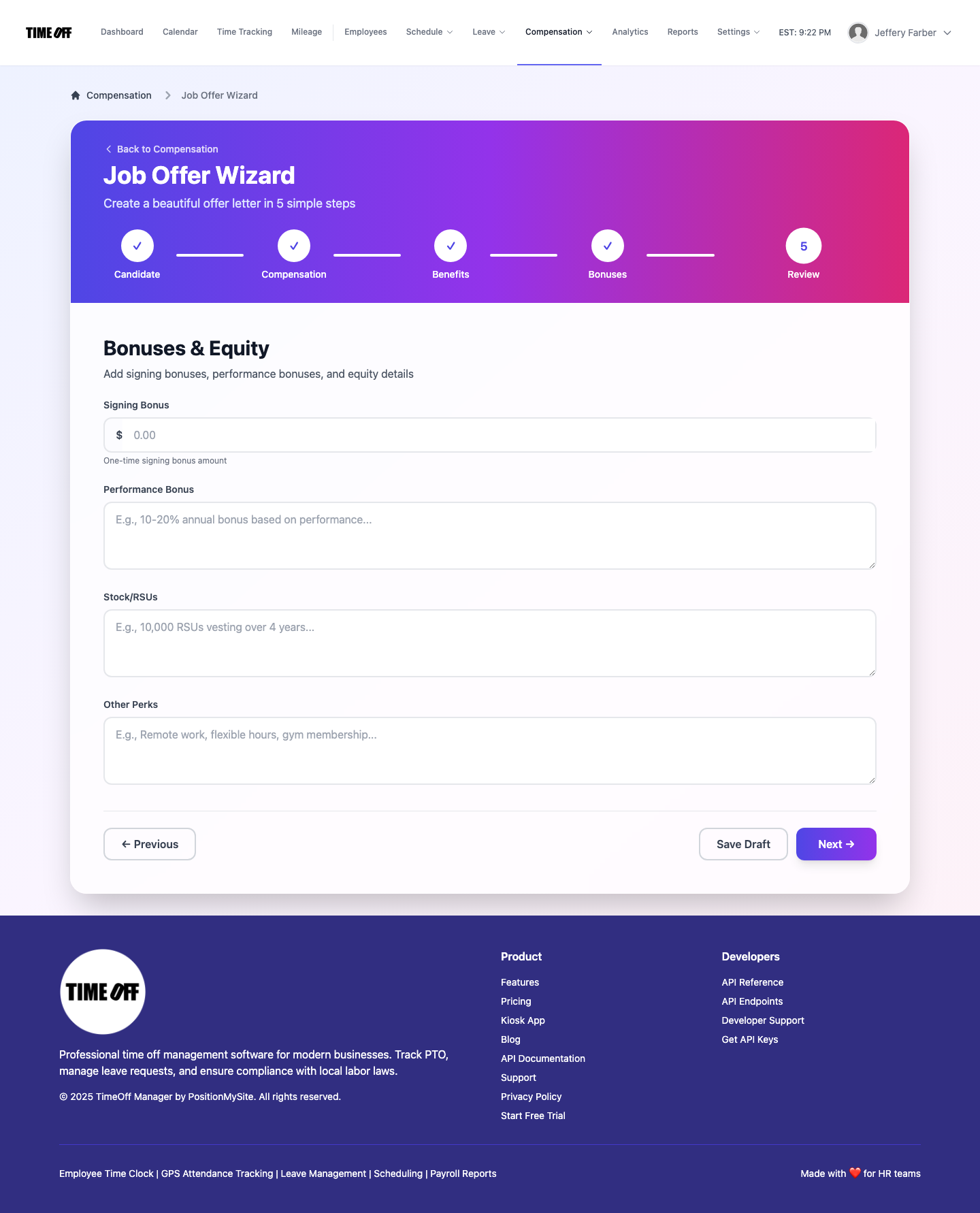
Step 4 — Bonuses & equity
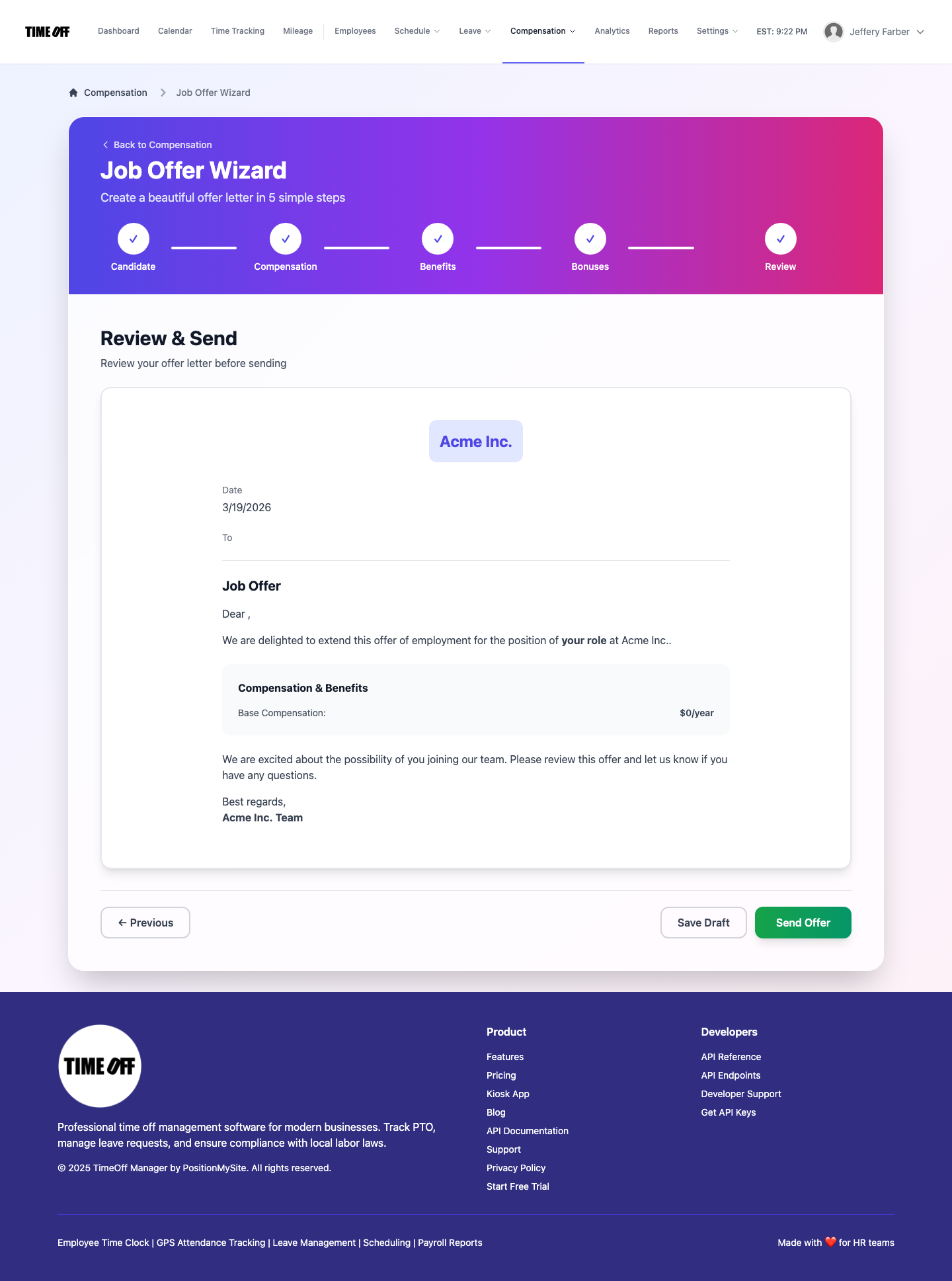
Step 5 — Review & send