Work locations (admin)
Hub at /admin/work-locations: office and job-site directory, stats (total/active/GPS/assigned headcount), add location, list with address/coords/geofence, edit, delete when unused; super admins pick company when multiple tenants.
/admin/work-locations
Roles
Company admin · Super admin
Work Locations at /admin/work-locations is where company administrators maintain offices and job sites, optional GPS geofencing for clock validation, and the directory your schedulers attach to shifts. Use Add Location for new rows; open Edit to change address, coordinates, radius, or active/GPS flags.
Overview
The page starts with summary cards: Total Locations, Active Locations, GPS Enabled (locations requiring validation), and Employees Assigned (headcount tied to schedules/sites). Below that, each location shows status (Active / Inactive), an optional GPS badge, address, map coordinates, geofence radius when applicable, and how many employees are scheduled there.
Who can open it
Company administrators and super administrators only. Super admins with more than one tenant see a Company selector at the top (same pattern as other admin hubs); choose the org before editing locations.
Navigation
The hub links to /admin/work-locations/create for the create form and /admin/work-locations/{id}/edit per row. Super admins should append company_id=id when switching companies if your bookmark omits the selector round-trip.
List & actions
- Edit — change name, address, coordinates, geofence, and validation options your build exposes.
- Delete — available when no employees are scheduled to that location; otherwise the row shows In Use instead of delete.
- Empty state — if none exist yet, use Add Location to seed the first site (needed before some schedule editors can assign a place).
Related
Schedule: Edit one employee — assign work locations to shifts · Holiday management (admin) — public holiday library · Company settings — organization profile and modules · Timesheet: Employee view — where GPS-validated clocks surface for staff.
Product screenshot
Automated capture: full page after login as company admin (demo tenant with locations).
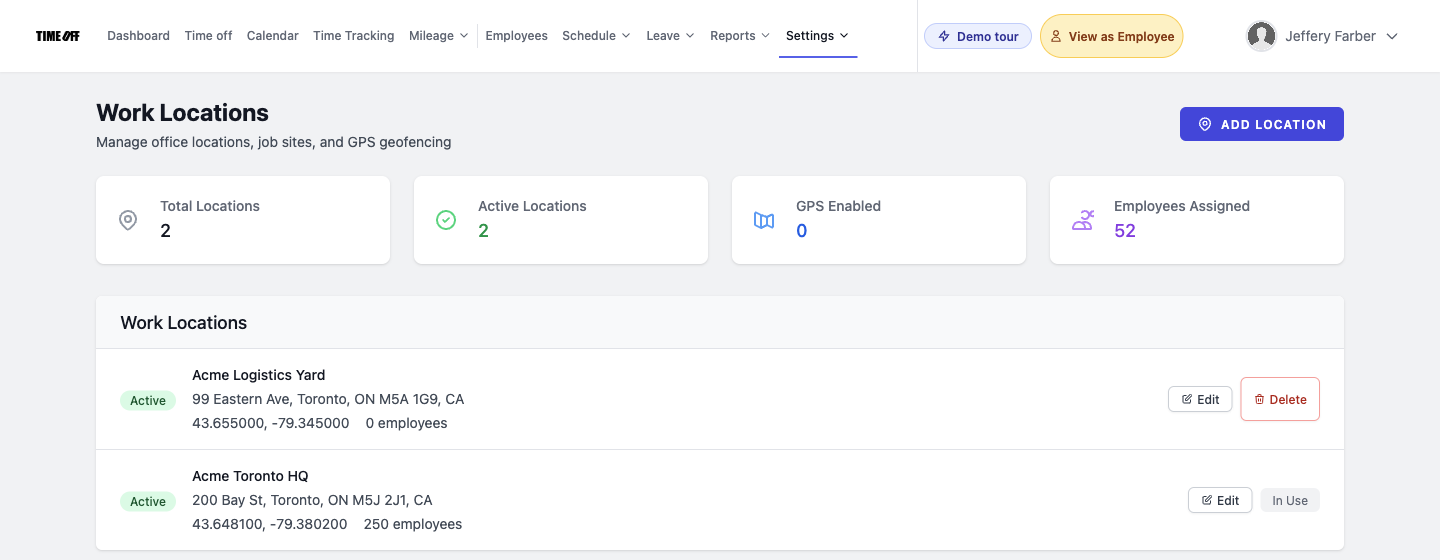
Work locations — /admin/work-locations